

BitKeep
BitKeep is a decentralized crypto wallet with over 10 million users worldwide. Explore various NFTs, DeFi protocols, and DAOs effortlessly with support for 90+ blockchain networks.
The M-10.0 version of Keystone only supports BTC and ETH through BitKeep, and more chain support is expected in the future. At the same time, the web version of BitKeep will also be integrated with the follow-up.
Warning:
Never import the recovery phrase generated by the software wallet into the hardware wallet. Instead, ONLY use the seed phrase generated on the hardware wallet. Otherwise, the funds in the hardware wallet will be compromised and irreversibly stolen.
The recovery phrase (also known as seed phrase or master key) gives full access to your cryptocurrency funds. If the recovery phrase falls into the wrong hands, your funds can be easily stolen. Therefore, for maximum security, the recovery phrase should always be generated and stored on an offline hardware wallet and never entered on an internet-connected device.
Note:
After importing your hardware wallet into BitKeep, your recovery phrase and private keys will still be stored on the hardware device. BitKeep is only used as a tool to display assets.
After importing, any transaction signatures still require your hardware device. So you don't have to worry about compromising your asset security after importing.
- 1.On Keystone, click the menu button and select "Connect Software Wallet". Find "BitKeep" and select the coins/networks you want to manage. A QR code will be displayed.

- 2.Open BitKeep and generate a new virtual wallet by selecting "New Wallet".

- 3.In BitKeep, click the avatar in the upper right corner to enter the "Switch Wallet" interface.
- 4.Select "Add Wallet" and then click "Hardware Wallet". You will be prompted to scan the QR code on Keystone with your phone.
- 5.Then select the coin addresses/accounts you want to manage.
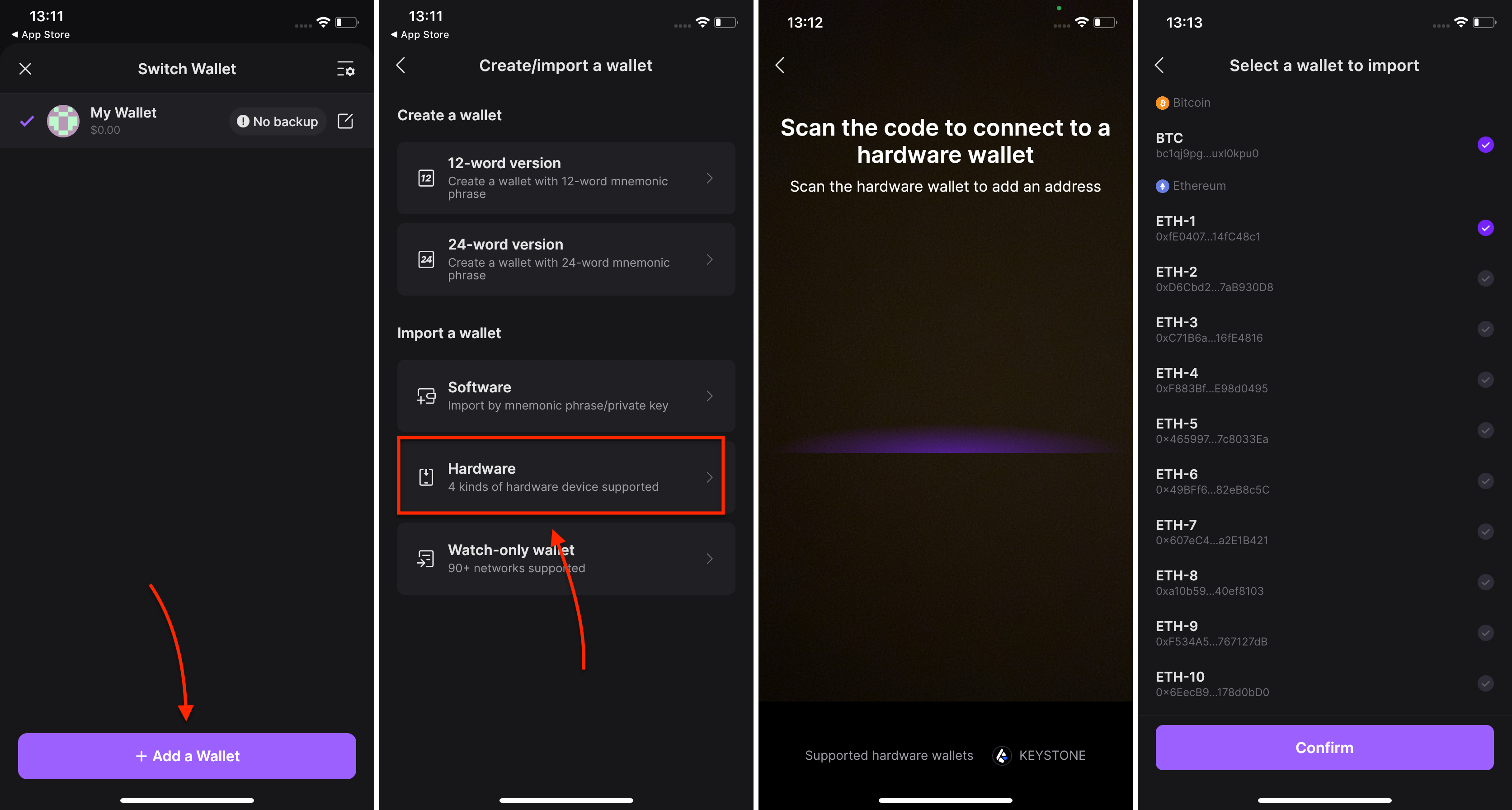
Done! You have successfully imported your Keystone wallet into BitKeep!

Last modified 3mo ago