

DOT/KSM Staking
Keystone is fully compatible with Polkadot{.js}. Users can use their Keystone to sign transactions for DOT/KSM staking, governance, account operation and other functions while only using a watch-only wallet for polkadot{.js}. The following instruction below will show the “how to add nominator” feature. Other functions share the similar operation interaction between Keystone and polkadot{.js}.
2. Sufficient balance on your DOT/KSM address.
1. Polkadot{.js}: Click [Network -> Staking]. Select “Account actions'' tab. Click [+ Nominator].

2. Set “stash account”, “controller account” and click [next].

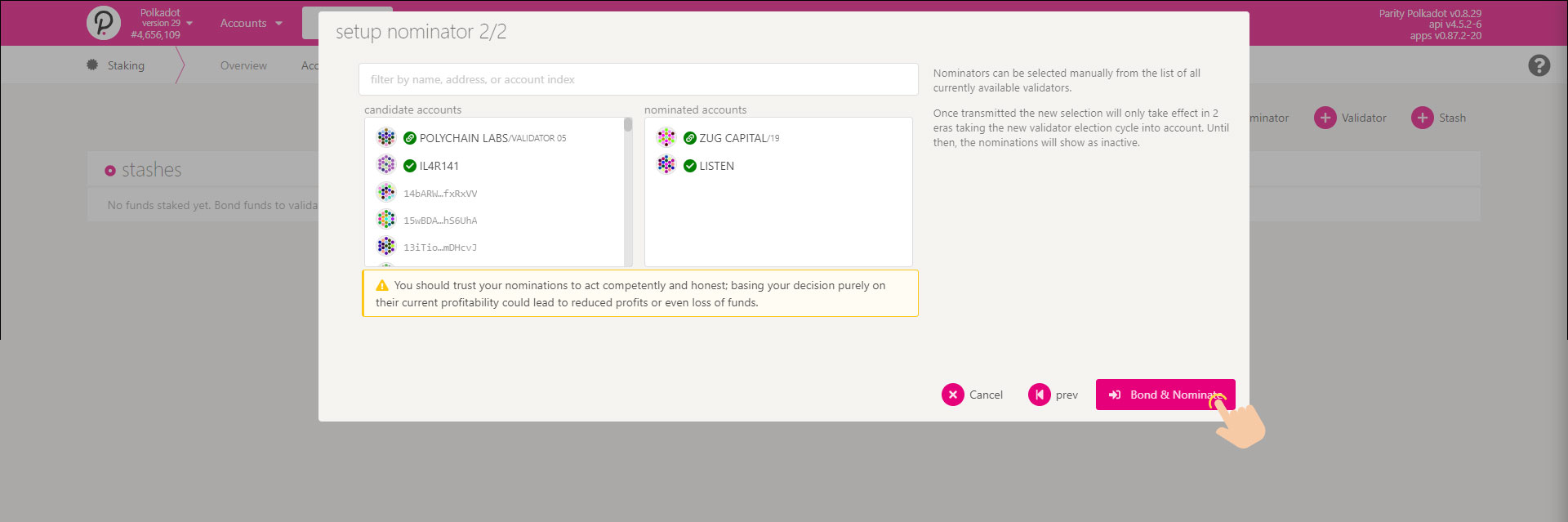
3. Select “nominated accounts” from the list of “candidate accounts” and click [Bond & Nominate].
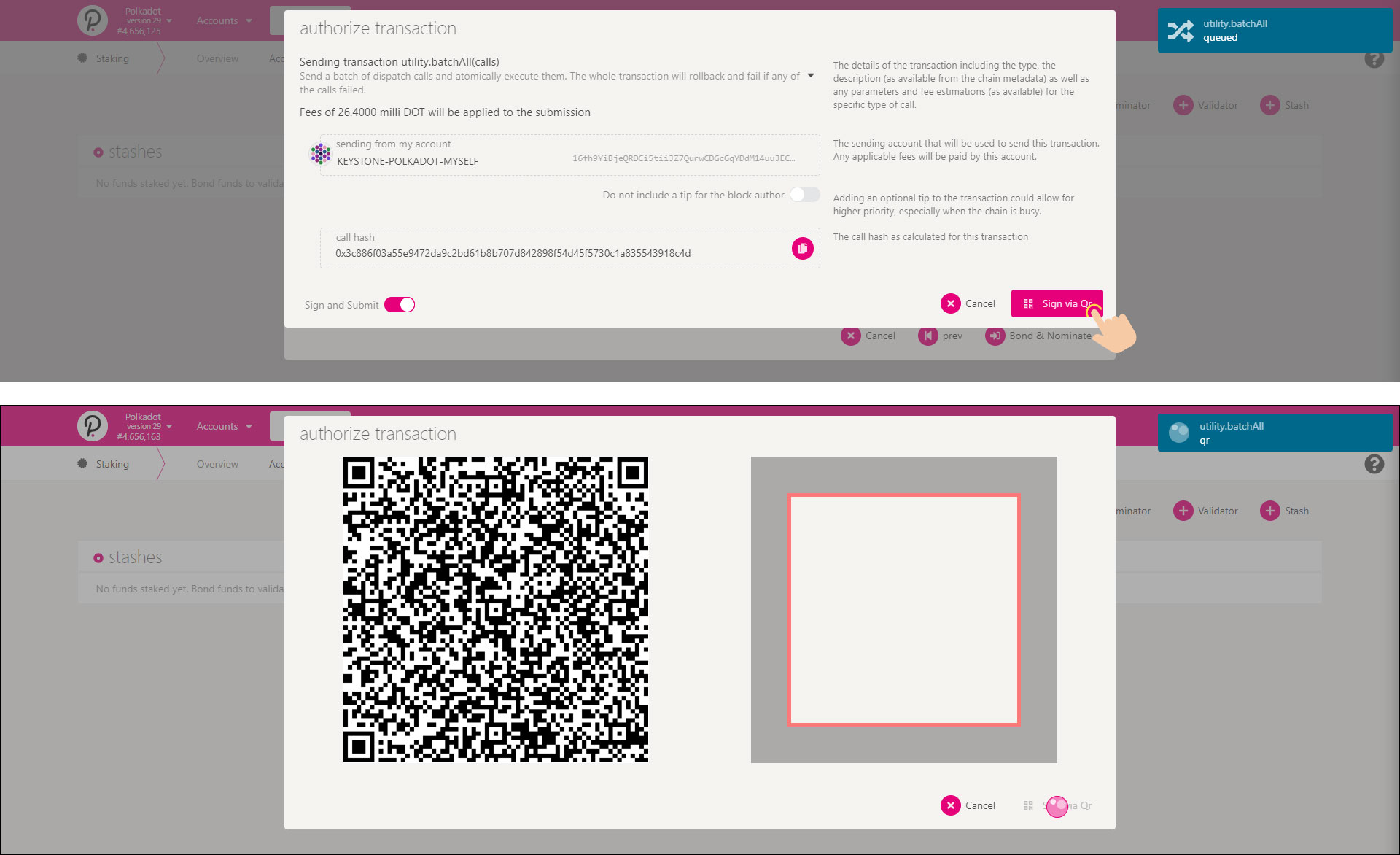
4. Click [Sign via QR] and show the unsigned transaction data in QR code format.
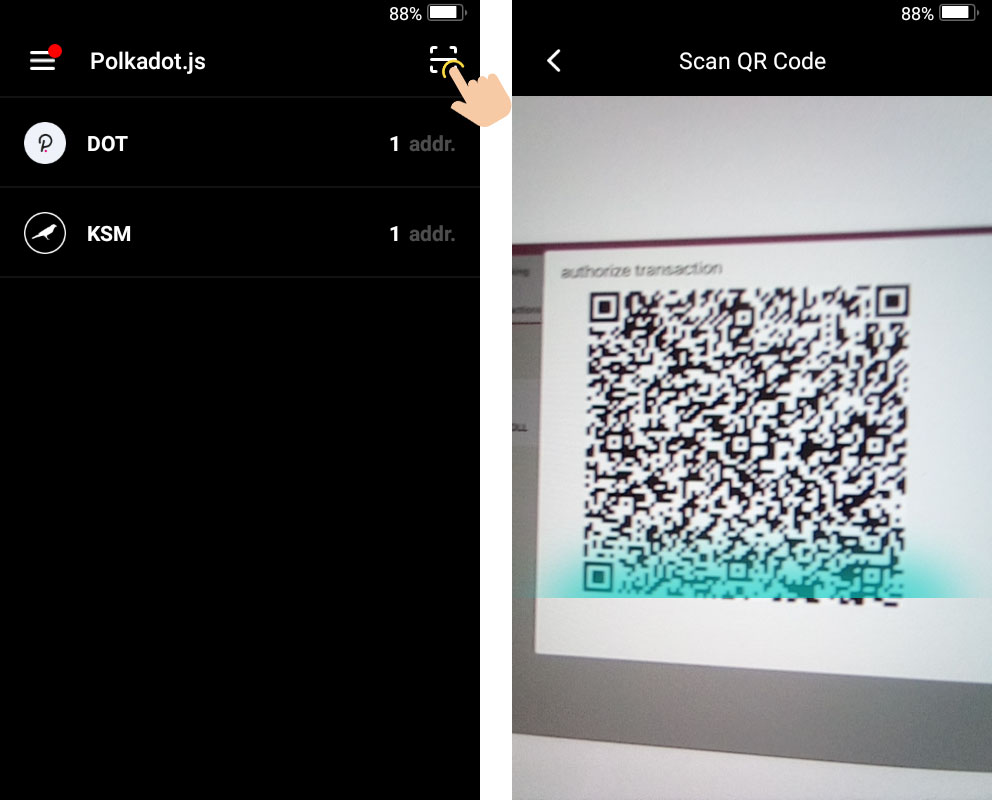
5. On the Keystone: Touch the “scan” icon and scan the QR code shown on polkadot{.js}.
6. Confirm the transaction details on Keystone. Touch [Sign] and enter the password or fingerprint to verify. The signed transaction data will then be displayed in QR code format.
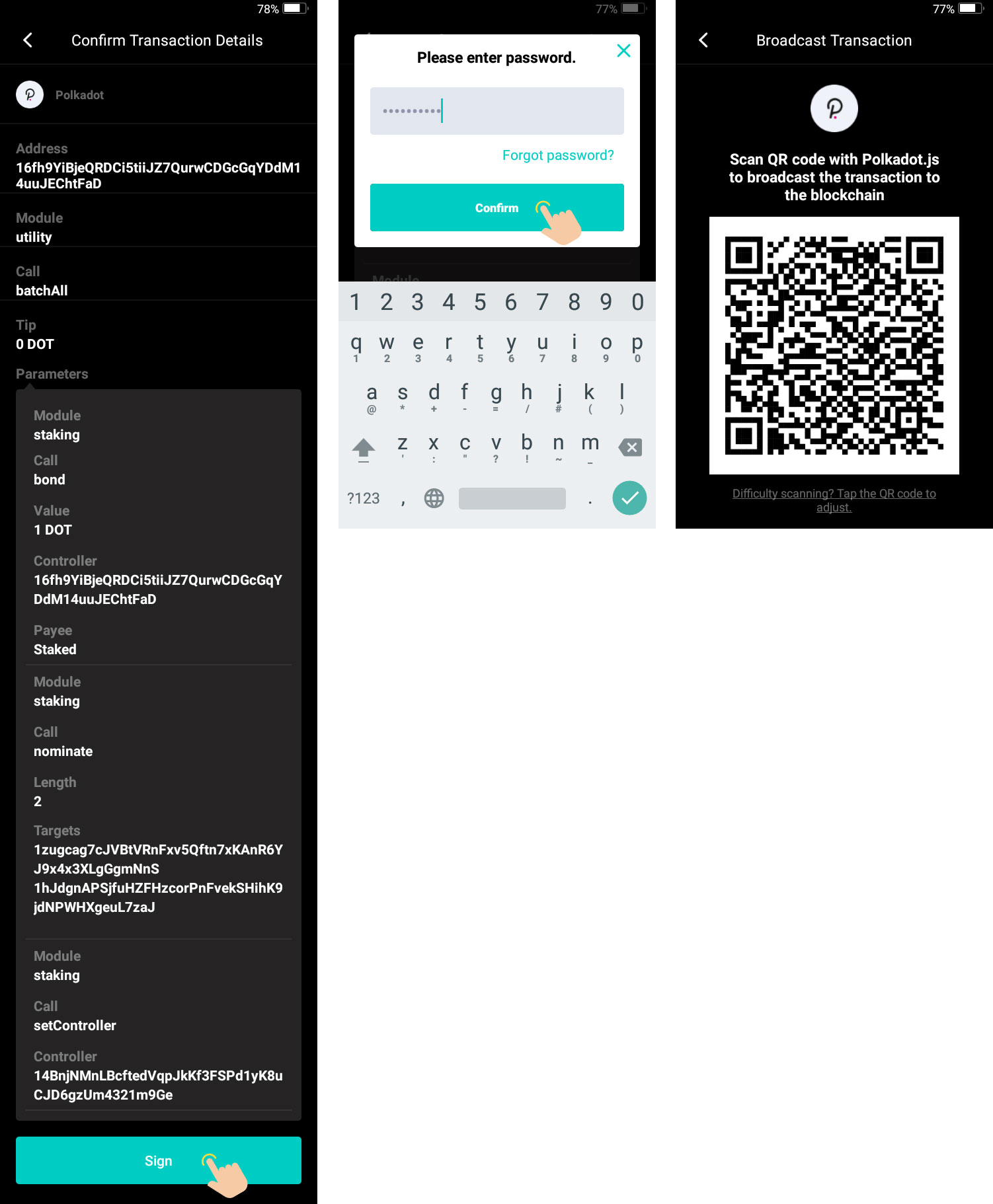
7. Polkadot{.js}: Click [Scan via QR] and scan the QR code shown on the Keystone.

8. Transactions are submitted automatically after the scanning has finished.

Last modified 4mo ago